
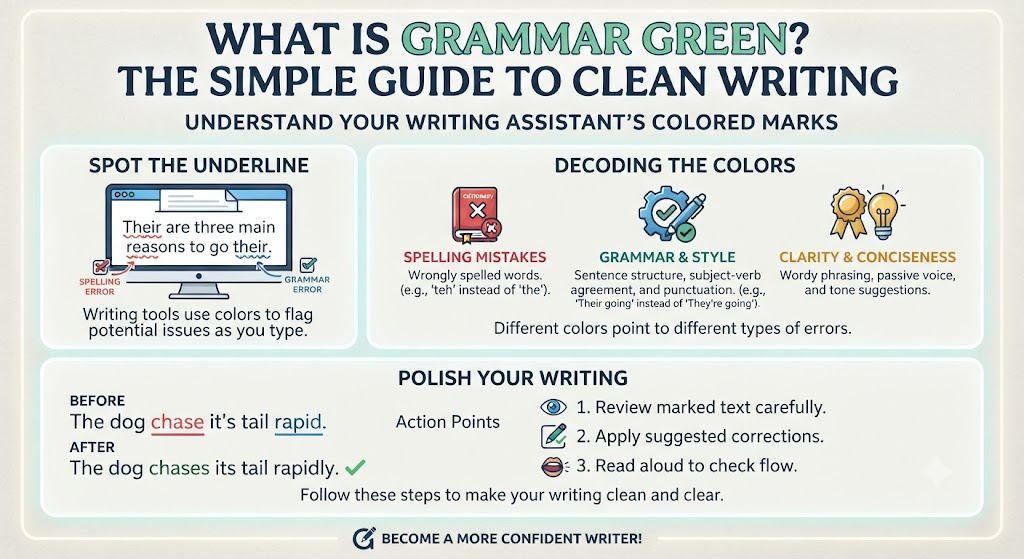
Have you ever been typing a document on your computer and suddenly noticed a wavy line under your text? Many writing programs use bright colors to show you when something in your sentence needs a little extra care. When you see Grammar Green marks on your screen, your software is pointing out a potential grammar or stylistic error. Understanding what these colored lines mean can instantly help you become a better, more confident writer.
Writing clear sentences does not have to feel like a tough chore. When you pay attention to grammar green indicators, you can catch tiny mistakes before you send an important email or turn in a project. Let us explore how these helpful writing tools work, what different colored lines mean, and how you can easily polish your everyday writing.
What Does Grammar Green Actually Mean in Writing Tools?
When you type in a modern word processor, the software acts like a silent assistant watching over your shoulder. Seeing grammar green highlights usually means the program has found a issue with sentence structure, subject-verb agreement, or punctuation usage. Unlike standard spelling mistakes, which usually deal with misplaced letters, these green warnings focus on how your words fit together.
Most digital editing software relies on a color-coded system to help you quickly spot areas that need improvement. For many years, traditional word processors used red for spelling and reserved grammar green for structural guidelines. Knowing the difference between these colors helps you edit your draft much faster without getting confused or overwhelmed.
+——————+———————————-+————————————+
| Line Color | What It Means | Common Example |
+——————+———————————-+————————————+
| Red Line | Spelling error or unknown word | “Teh” instead of “The” |
| Green Line | Grammar, punctuation, or style | “They is” instead of “They are” |
| Blue Line | Contextual spelling or clarity | “Their” instead of “There” |
+——————+———————————-+————————————+
Common Reasons You See Grammar Green Underlines
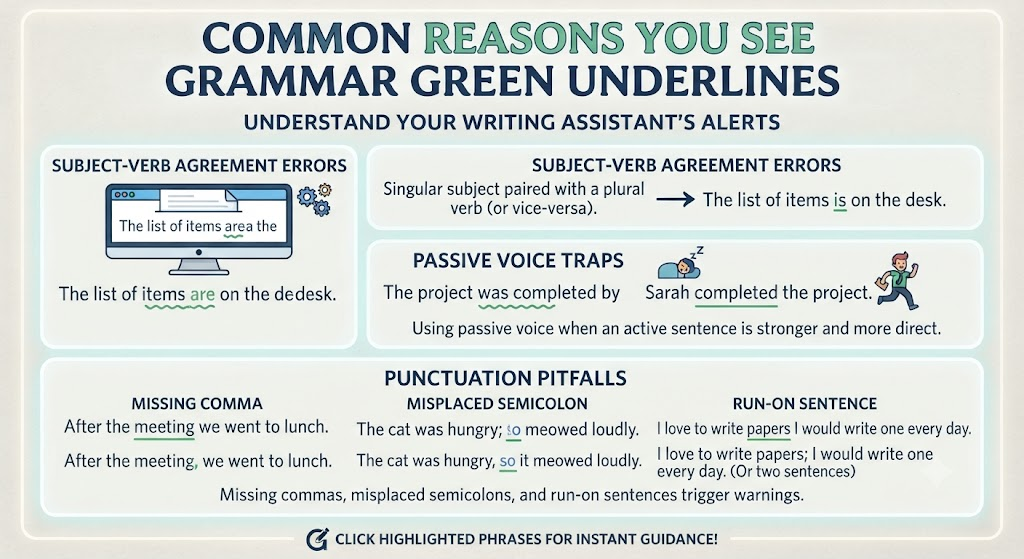
There are several specific reasons why a grammar green squiggly line might pop up under your sentence. One very common cause is subject-verb agreement, where a singular noun is accidentally paired with a plural verb. Another frequent trigger is using passive voice when an active sentence would sound much stronger and more direct.
Punctuation mistakes also trigger these warnings quite often. Missing commas, misplaced semicolons, and run-on sentences will almost always bring up a grammar green prompt in your editor. By clicking on the highlighted phrase, you can instantly see what rule you might have broken and how to correct it easily.
How Digital Proofreading Tools Catch Mistakes
Digital proofreading software uses advanced algorithms and natural language processing to scan your text in real time. As you type each letter, the program compares your sentence structure against a giant database of proper English rules. If something looks unusual, the tool flags it with a grammar green marker to grab your attention.
These smart programs do not just look at individual words in isolation; they look at the whole sentence context. This means if you write a phrase that is technically real words but formatted incorrectly, the grammar green system catches it instantly. It gives you immediate feedback so you can learn proper language patterns while you work.
Passive Voice vs Active Voice: Clearing the Green Lines
One of the biggest reasons writers see a grammar green warning is because they rely too much on passive voice. Passive voice happens when the subject of your sentence receives the action instead of doing it. For instance, saying “The ball was thrown by Sam” often brings up a green suggestion to change it to “Sam threw the ball.”
Active voice makes your writing sound livelier, clearer, and much easier to read for everyone. When you rewrite passive sentences to clear those grammar green markers, your overall message becomes much more engaging. Readers can easily follow who is doing what without having to read the sentence twice.
Punctuation Rules That Trigger Grammar Green Alerts
Punctuation can sometimes feel tricky, but it plays a huge role in keeping your writing readable. Misplacing a single comma can completely change the meaning of your entire sentence. Writing tools frequently use grammar green alerts to show you where a comma, period, or apostrophe is missing or placed incorrectly.
Another big culprit is the comma splice, which happens when you join two complete sentences with only a comma. When your editor detects a comma splice, it drops a grammar green line under the junction and suggests splitting the sentence or using a conjunction. Fixing these small punctuation details instantly elevates the quality of your work.
Simple Habits for Keeping Your Writing Clean and Clear
You do not need to be an English professor to keep your writing free of grammar green errors. Building a few simple habits before you hit send can save you a lot of editing time later. First, always take a short break after finishing your initial draft so you can review it with fresh eyes.
Reading your work out loud is another fantastic trick for catching hidden errors. When you speak the words, your ears will naturally catch awkward pauses or confusing phrasing that might trigger a grammar green alert. If a sentence feels hard to say out loud, it probably needs to be simplified or split into two smaller sentences.
Why 5th-Grade Readability Makes Your Content Better
Keeping your writing at a smooth, accessible reading level ensures that everyone can understand your message clearly. When sentences are too long or filled with overly complex jargon, readers quickly lose focus. Aiming for clean, simple structure reduces grammar green flags and keeps your audience happy and engaged.
Short sentences, active verbs, and plain language are the building blocks of great communication. When you clear out unnecessary clutter to remove grammar green lines, your core idea shines through brightly. Whether you are writing a blog post, a work email, or a school report, simplicity always wins.
Top Proofreading Tools That Use Visual Grammar Aids
Many popular writing applications use visual cues like grammar green highlights to assist content creators. Programs like Microsoft Word, Grammarly, and Hemingway Editor all rely on distinct visual systems to guide your editing process. Each tool offers unique features to help you polish your vocabulary and sentence flow.
Using these digital tools alongside your own editing skills creates a powerful combination. While the software points out potential grammar green issues, you get to make the final decision on how your voice sounds. Over time, using these tools regularly trains your mind to avoid common mistakes naturally.
How to Fix Grammar Green Warnings Step-by-Step
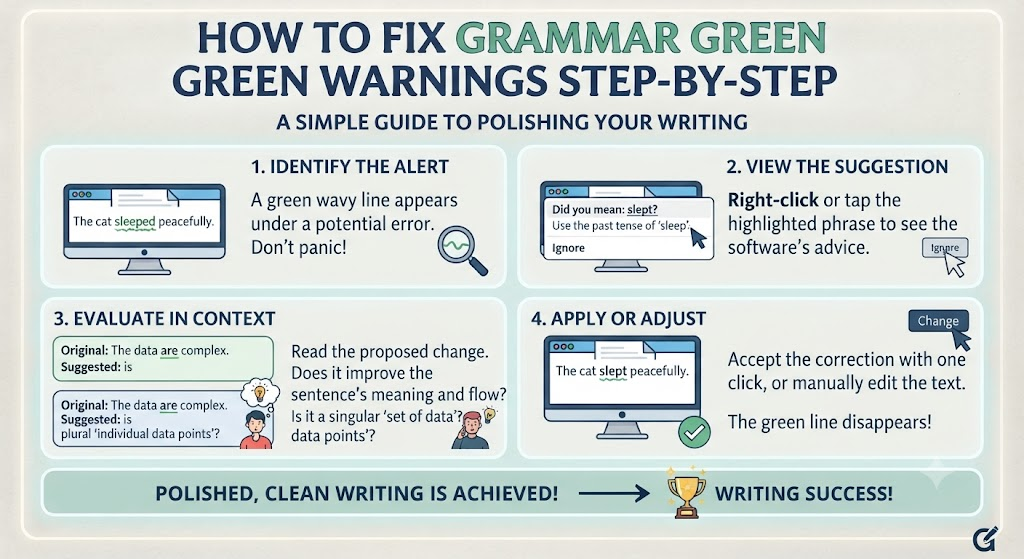
When you encounter a grammar green line in your document, do not panic or feel discouraged. First, right-click or tap on the underlined word or phrase to view the software’s suggestion. The tool will usually explain why it flagged the sentence and offer a quick one-click fix.
Next, read the suggested change carefully within the context of your paragraph. Sometimes automated software misunderstands your creative style, so you should only accept a grammar green correction if it truly improves your sentence. Once you accept or adjust the text, the colored line will disappear, leaving you with clean, polished writing.
Frequently Asked Questions
What is the main difference between red and green underlines in a document?
Red underlines almost always indicate a spelling mistake or an unrecognized word. On the other hand, green underlines highlight grammatical issues, sentence structure problems, or incorrect punctuation usage.
Does a green line always mean my writing is wrong?
Not necessarily. Writing tools use automated rules, but they do not always understand context or creative style. Treat green lines as helpful suggestions rather than strict rules you must always follow.
How can I reduce grammar warnings while typing?
You can reduce warnings by using short sentences, choosing active voice, and double-checking your punctuation. Reading your work out loud before checking software suggestions also helps you write more naturally.
Can I turn off colored grammar underlines in my word processor?
Yes, most word processors allow you to customize or turn off grammar checking in their settings menu. However, keeping them enabled is usually helpful for catching quick typos and structural errors.
Why does passive voice trigger a grammar warning?
Passive voice often makes sentences longer and harder to read. Writing tools flag passive voice to encourage you to use active, direct language that keeps your readers interested.
Are free grammar checking tools accurate enough for everyday use?
Yes, most free proofreading tools are very reliable for catching basic grammar, punctuation, and spelling mistakes. They provide a great starting point for keeping your daily writing clean and clear.
Conclusion
Paying attention to grammar green marks in your writing software is one of the easiest ways to build strong communication skills. These simple visual cues help you catch passive voice, punctuation slip-ups, and tricky sentence structures before anyone else reads your work. By keeping your sentences simple, active, and well-structured, you can write clear content that connects with every reader. Next time you see a green line on your screen, take a quick moment to review the suggestion and polish your draft to perfection!
